

tips and tricks 😉
Indice
The first thing to do: set the road surface
A mistake I often see when creating new roadbooks is forgetting to set the road type on the start note.
This is important because Roadbook Editor uses a “road surface inheritance” rule: if the road type is not set in the first note, the following notes will not be able to inherit it correctly.
When we load a track.gpx file with Ctrl+X, the program automatically creates two notes:
When we load a track.gpx file with Ctrl+X, the program automatically creates two notes:
- the start note
- the finish note
These two notes, both shown in red, may also coincide, depending on the loaded track.
Click on the first note to select the related waypoint; the corresponding point on the map will turn yellow.
Now click on the white circle of the arrow and choose the initial road surface.
At the beginning, the arrows are light grey and not very visible.
This is because the start note, just like the finish note, has only one possible direction: forward.
Click on the first note to select the related waypoint; the corresponding point on the map will turn yellow.
Now click on the white circle of the arrow and choose the initial road surface.
At the beginning, the arrows are light grey and not very visible.
This is because the start note, just like the finish note, has only one possible direction: forward.
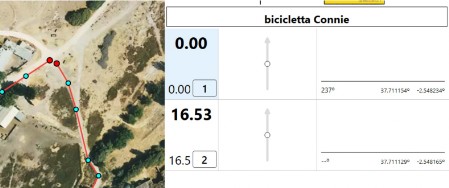
Click on the images to enlarge
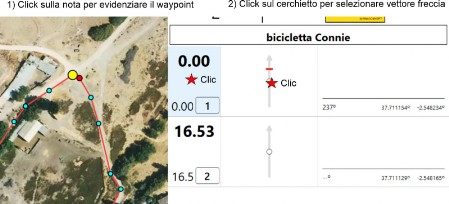
Click on the images to enlarge
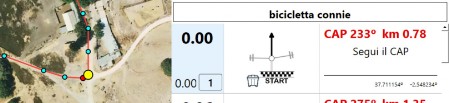
Clic sulle immagine per ingrandire
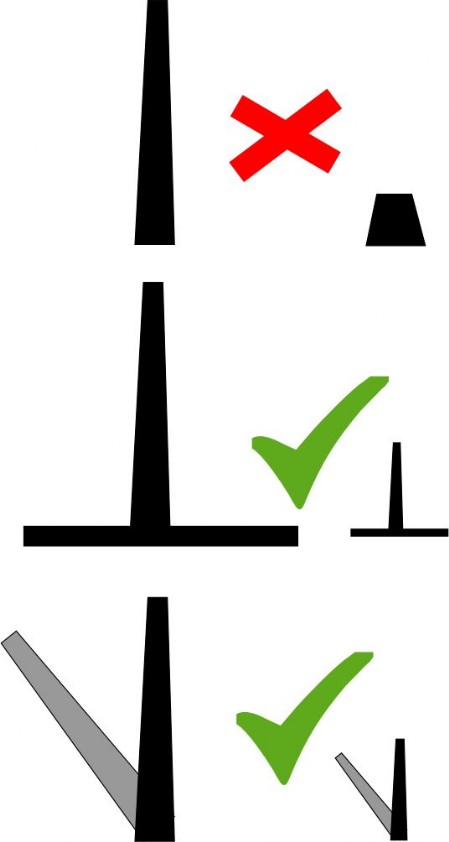

Click on the images to enlarge
First step: set the type of road surface
Click the white circle in the center of the vignette to select the upper direction arrow, which we will call the OUT vector.
Now select the type of road you are on:
Now select the type of road you are on:
- asphalt
- track
- Off-road (red dashed line)
Once the road surface at the start has been set, the next note will automatically inherit this type of surface.
Recommended procedure for creating a note
- Set the road surface
(click the central circle to select the OUT vector) - Add any junctions
(click in an empty area of the central column to deselect the OUT vector, then click the diagonal arrow)The junction can represent:- a small secondary dirt road
- a clearly visible track
- a crossroads with a paved road
- a motorway
- a small secondary dirt road
- Add the icons
(houses, trees, obstacles, etc.)
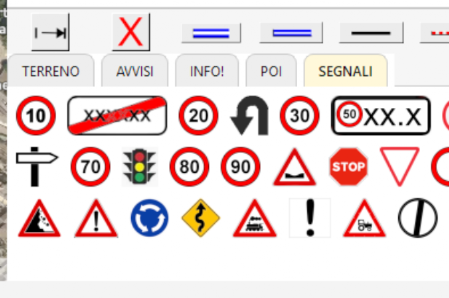
Custom icons: Adding custom icons is very simple.
- Search on Google Images for the symbol, clipart or drawing that best suits your needs and copy it with CTRL+C
(even without opening the link, if the image is already clearly visible).
- Then go back to the Roadbook Editor window, place yourself in the appropriate tab area and paste it with CTRL+V.
To change the name (default is “icon”), press F2 and enter the new name.
Warning: if you change the name of an icon already used in a roadbook, the program will no longer be able to find it. Always check before making changes.
Warning: if you change the name of an icon already used in a roadbook, the program will no longer be able to find it. Always check before making changes.
- From that moment on, the icon will always be available in the selected tab.
Sometimes the icon is copied with a background.
To remove it, you can use an image editor that allows saving as a .png with a transparent background, or a free online service such as remove.bg.
You can also find collections of symbols and clipart online already in transparent .png format, ready to use.
If you have a screen capture tool, you can also select and copy only the part of the image you are interested in.
Important: when copying, always consider the proportions of the image.
The icon, including any background, should be approximately square, because the ratio between height and width affects the final result.
Often it is enough to add a base, for example a horizontal line representing the ground or a shadow, to obtain correct proportions and a better result.
You can also find collections of symbols and clipart online already in transparent .png format, ready to use.
If you have a screen capture tool, you can also select and copy only the part of the image you are interested in.
Important: when copying, always consider the proportions of the image.
The icon, including any background, should be approximately square, because the ratio between height and width affects the final result.
Often it is enough to add a base, for example a horizontal line representing the ground or a shadow, to obtain correct proportions and a better result.
Roundabouts, and how to manage them in the roadbook
1) If you do not have a roundabout icon you like:
- Search for a simple image, preferably PNG and with a clean or transparent background.
- Copy it to the clipboard: right click → Copy image.
- In the program, open the icon tab, for example Signs, or the tab where you place your icons..
- Click inside the tab area and paste with Ctrl+V.
The program will resize it automatically. - From that moment on, the symbol will be available and you can insert it into the roadbook notes.
2) How to show the exit clearly
To avoid ambiguity, the practical rule is: clearly show the exit to take, for example 2nd, 3rd, etc., and if necessary use two trackpoints.
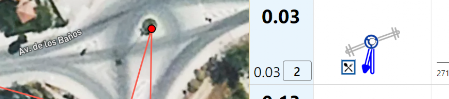
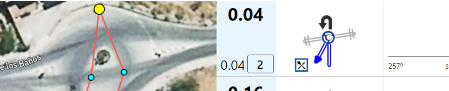
3) As an example, two images of the same junction were created using two different solutions (same exit, different methods).
In one of the two cases, a U-turn icon was also added to make the maneuver even clearer.
Attention! Use this representation system only if you do not plan to use RB Reader in automatic mode.
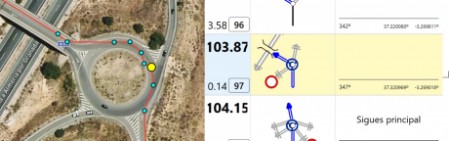
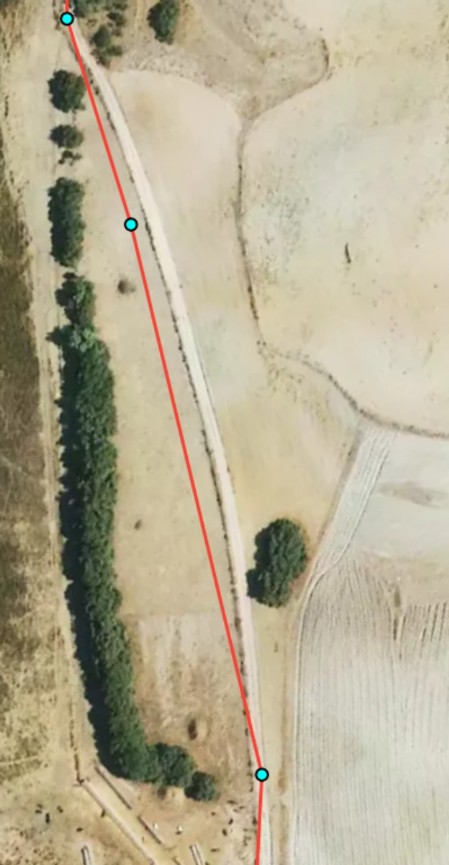
immagine 1
immagine 3
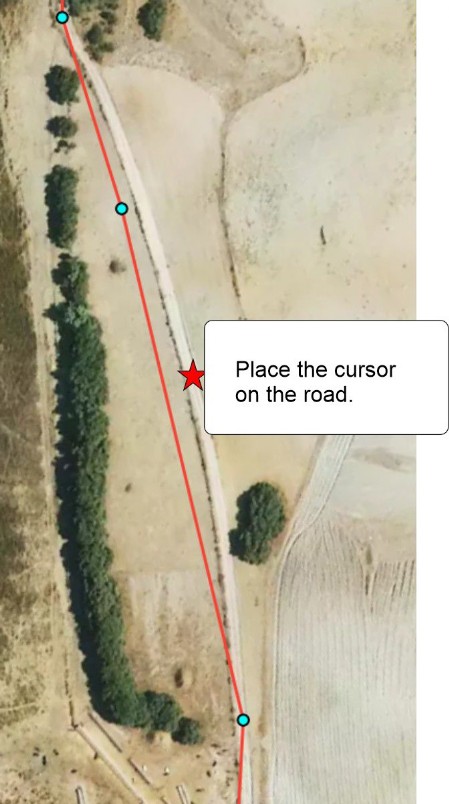
immagine 2
immagine 4
3a) If you plan to use RB Reader also in automatic mode, this method, which respects the travelled distances shown by the odometer, is the only one that guarantees correct validation of the RB Reader automatic system.
It consists of using all the roundabout reference points, placing waypoints and previous/following points consistently.
It may seem complex, but in reality it is simple: you recreate the same real angles between the roundabout entry and exit, replicating them between the waypoint and the reference points.
Edit points: add point on line (L)
Sometimes it may be necessary to edit points, for example because the GPS signal that generated the .gpx file was weak (image 1; this is only an example; the drawn route is correct).
The “L” shortcut allows you to add a point on the track line, useful for connecting existing points better and preventing the route from appearing as a zig-zag.
The “L” shortcut allows you to add a point on the track line, useful for connecting existing points better and preventing the route from appearing as a zig-zag.
This function is useful in many cases, for example:
- roundabouts
- wide bends
- small tracking errors
- partial and total mileage correction
It is easy to use, but keep in mind that it only works within about 10 meters of the roadbook .gpx track.
Place the cursor where you want to add the new point and correct, for example, the shape of the route line (image 2).
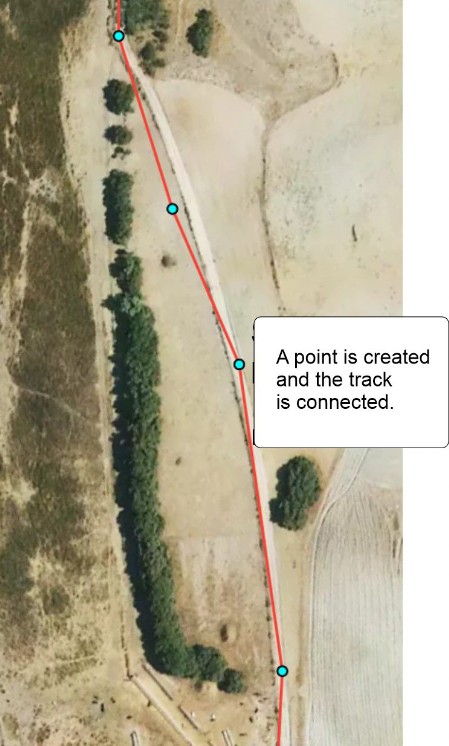
Then press L: a new point will be added and the route line will follow it (image 3).
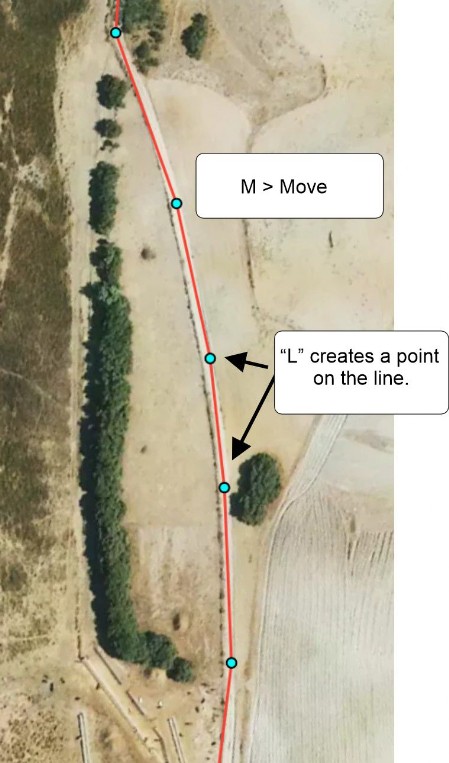
With a combination of M and L, you can edit the route with great freedom (image 4).
Then press L: a new point will be added and the route line will follow it (image 3).
With a combination of M and L, you can edit the route with great freedom (image 4).
Using Voice Notes
Voice notes are particularly useful during route reconnaissance, but they are best reserved for information that cannot easily be obtained from the map.
Avoid using them simply to mark junctions, unless you have identified new connections, deviations, or intersections that are not shown on the map and could cause confusion.
They are especially useful for recording:
- a change in road surface, for example from asphalt to dirt or vice versa;
- obstacles that may require attention, such as a fallen tree, a landslide, a boulder, or a particularly dangerous section;
- permanent or difficult-to-remove features, especially on little-used tracks;
- scenic viewpoints or places of particular interest.
Converting a Voice Note into a Roadbook Element
After listening to a voice note in the Editor, convert the information into an actual roadbook element.
For example, if the note indicates a change in road surface:
- convert the audio point into a trackpoint using the T command;
- delete the corresponding note when it is no longer needed;
- set the correct road type in the vectors of the previous and following notes.
If the note indicates a hazard, make sure that a real WPT exists at the correct location. Also check that the vectors indicate the correct direction: straight ahead, right, or left.
During this check, it may be useful to temporarily hide the voice-note indicators so that you can clearly distinguish the real WPT from the audio marker.
Marking Notes as Processed
After incorporating the information into the roadbook, always mark the voice note as Implemented.
This allows you to see immediately which recordings have already been processed and move on to the next one without risking omissions or duplicate work.
Managing Voice Notes After Saving
When you save the roadbook in JSON format, the voice notes are not embedded in the file. However, after reloading the roadbook, you can import them again using:
Import → Import Voice Notes
With this method, voice notes are displayed only as audio markers: they are not actual WPTs and do not modify the roadbook. You can listen to them with the player and, when necessary, create the appropriate point using:
- L, to insert a trackpoint;
- W, to insert a new note/WPT.
Notes Imported Directly from RB Recorder
When you use:
Import → Import from RB Recorder
the points associated with the voice notes are actually inserted into the track. Their colour indicates the type of point:
- light blue, if the point has been converted into a trackpoint;
- red, if it is a WPT.
In both cases, the point keeps an orange border, indicating that a voice note is associated with it.
Indicating Implemented Notes
When you select the Implemented checkbox, the marker changes appearance differently depending on how the note was imported:
- with Import Voice Notes, the simple audio marker turns green;
- with Import from RB Recorder, a speaker icon appears on the note.
These indicators make it easy to distinguish notes that still need to be processed from those that have already been converted or checked in the roadbook.
Up
Up